Under Construction
 |
 |
 |
04.06 Saving
Save the selected sample by choosing "Save ..." from the File menu (or by pressing [Ctrl]+[S]). A customized file selector will pop up.
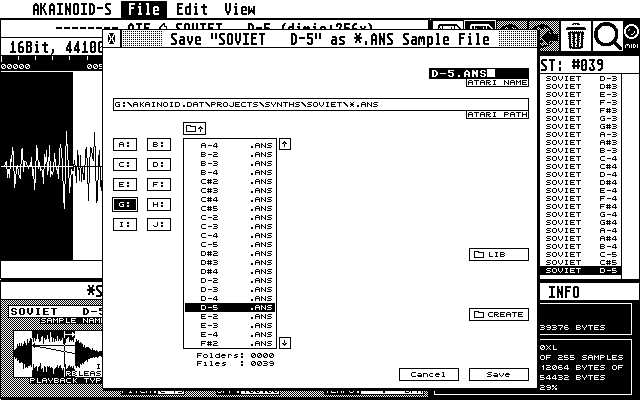
You can edit the Atari file name displayed in the file selector for Saving. When you press [Ctrl]+[X] while editing the Atari name, the rest of the name is ignored and the correct file extension will be appended (.ANS).
NOTE:
The customised AKAINOID file selector accepts characters the standard Atari file selector doesn't, even though they are supported by TOS. Just think about how important the character "#" is in music:
- digits '0' - '9'
- letters 'A' - 'Z'
- characters '_', '#', '!', '+', '-', '=', '~', '<', '>', '|'
All shortcuts of the Open/Import file selector work for the Save window, too.
You start entering or editing your Atari file name by clicking into the corresaponding field in the upper right of the window. While editing the file name (the cuirsor is blinking), you can
- confirm your changes and return to mouse control by hitting [RETURN],
- undo your changes and return to mouse control by hitting [Esc],
- delete all characters from the cursor position onwards while returning to mouse control by pressing [Ctrl] + [Return] or
- delete all characters from the cursor position onwards and append the file extension (in this case: ".ANS") instead by pressing [Ctrl] + [X].
You can create a new folder carrying the Atari file name entered, by clicking the corresponding button.
NEW
The file selector now shows date (DD.MM.YYYY) and time (24hrs) in addition to the the listed file names.
Saving a sample on the Atari will actually generate three separate files in the chosen destination folder carrying the same name but different extensions:
- the .ANS file: this AKAINOID file type stores all information relevant to both the application itself as well as the Akai sampler. As AKAINOID is nowhere near to being complete, the file structure will grow and change in future releases but should keep backwards compabiltty.
-
the .AIF file: compatible with the Audio Interchange File
Format "AIFF" as described in the standard for sampled sound
files, version 1.3 by Apple Computer, Inc.
The file extension on modern computers usually is ".aiff",
the limitation to 3 characters just is demanded by the Atari
file system.
Contains the raw sample data. You should be able to open .AIF files generated by AKAINOID in any audio editor capable of loading .AIF(F) files such as SquashIt! on the Atari STE and Falcon or Audacity or WaveLab by Steinberg on Microsoft PCs. - the .SYX file: containing the SysEx header data according to the S1000 protocol. You could actually import this file into Cubase and send it from there.
|
|
|