Under Construction
 |
 |
 |
05 - Program (Single) Mode
Choose Program Mode from the main menu application (AKAINOID.PRG). If an Akai sampler is detected on the MIDI ports specified in the Preferences dialog, a dialog box will show its software version (my SX3000XL actually shows v17.000) as well as its maximum and free amount of RAM. If not, an alert box will pop up telling you to check your MIDI wiring and MIDI settings in the Preferences, which you shouldn't forget to save.
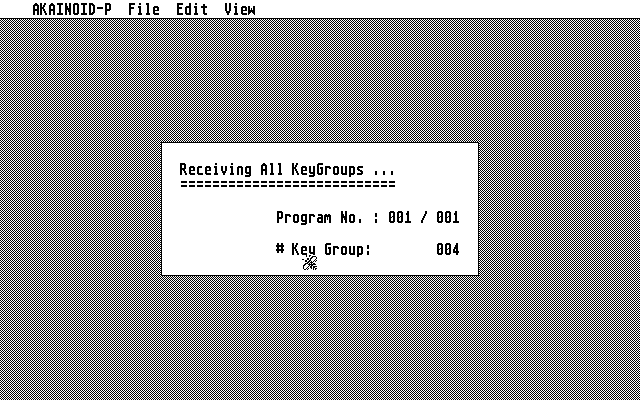
On success AKAINOID is retrieving the Akai's sample list and all of its programs and keygroups and the Program Mode part of AKAINOID presents its initial screen with the following windows open (detailed descriptions will follow):
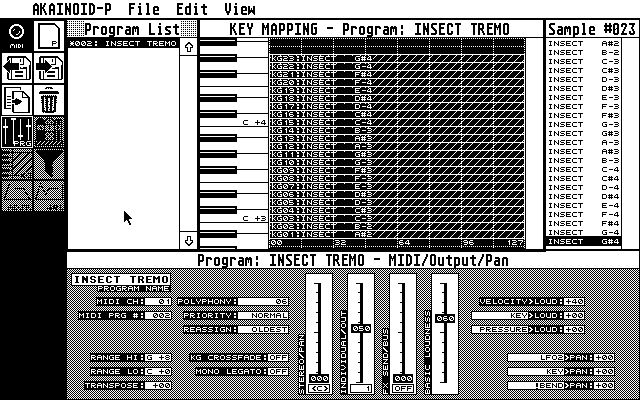
To the left there is the ToolBox presenting icons for a couple of application functions and views as well as a LED, which is highlighted everytime you play a note on your master keyboard correctly connected to AKAINOID/your Atari. Clicking this LED will play the test note specified in the Preferences.
Next to the ToolBox there is the Program List showing all Programs (singles) inside the RAM of the Akai. The number displayed by the way isn't the list index but the MIDI program number. A preceeding asterix indicates, that the current state of the Program hasn't been saved to the Atari yet.
Below there is an area for Properties of the selected view (on start-up: Program Properties). This window is being replaced often as you choose different views and will show various Properties of the AKAINOID object (basically Program or KeyGroup) selected.
To the centre of the screen there is the Key-Mapping window showing all
KeyGroups of the Program selected in the Program List from the lower end of
the MIDI keyboard to the higher (bottom to top). You can change size and
location of these KeyGroups and create new KeyGroups by dragging and
dropping a sample from the Sample List to the right into the Key Mapping
area.
This key mapping editor can be replaced by the Velocity Zones editor.
Clicking on keys of the vertical keyboard displayed will play the corresponding MIDI note on the Akai as long as you keep the mouse button pressed. The velocity of this note is the same as the test note's velocity specified in the Preferences.
The Sample List is displaying all samples loaded to the RAM of the Akai. Drag lines from this list to the Key Mapping editor in order to create a new KeyGroup or replace a sample inside an existing KeyGroup by dragging a line and dropping it onto the SAMPLE field in the KeyGroup/Zones editor when open.
|
|
|