Under Construction
 |
 |
 |
04.04 Sample List
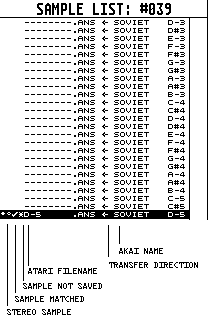
Finally the application will present the Sample List window to the right of the screen already filled with samples or not depending on your choice and samples actually loaded to the Akai's RAM on start-up. Note that AKAINOID at this point in time only knows a sample's name on the Akai, all additional data must still be retrieved via MIDI unless there's been success on fully matching the sample.
The samples are represented by lines in the Sample List Window, which has six distinct columns of which the very right one is the 12 characters wide sample name on the Akai.
Next to the Akai name to the left is a horizontal arrow indicating the initial origin of the sample and the transfer direction: If the arrow points to the left away from the Akai name, the sample's origin is the Akai. If the arrow points to the right towards the Akai name, the sample origin is the Atari.
One more column to the left there is the 8 characters wide Atari file name plus its extension.
The first column, which is 2 characters wide will indicate a stereo sample, once AKAINOID supports stereo samples.
The second column contains a check mark if the raw sample data has been matched: The sample has been transferred and exists inside the Akai's RAM as well as on the Atari's hard disk.
An asterix in the 3rd cokumn indicates that the state of the sample data needs to be saved.
Since you haven't loaded or imported any samples or audio files to the application yet, all arrows should point to the left presumed the sample list isn't empty.
You can browse and scroll through this list as you wish. You can press [CURSOR UP] and [CURSOR DOWN] to move up or down a line in the list or just select a sample line using the mouse. The list index is displayed in the window's title bar.
DEPRECATED
The feature of editing Sample name and Atari filename directly in the Sample List by [Alt]-clicking into the current line of the List is now deprecated. Please use the Sample Properties window or the File Selector to do so.
|
|
|