Under Construction
 |
 |
 |
05.02 The Key Mapping Editor
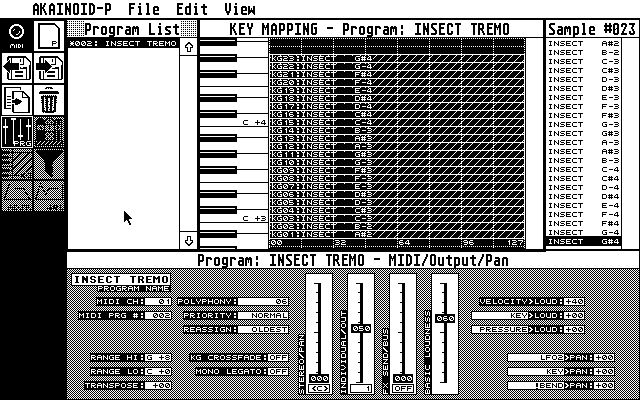
The key mapping editor is showing all keygroups of the selected Akai Program (in the list to the left) as hatched rectangles next to an on-screen keyboard. The keygroup index and the name of the Sample loaded to Zone 1 of the keygroup is displayed to the bottom left of the rectangle. The vertical dimension and location of this rectangle represents the keygroup range.
When clicking one of these keygroups, it will be highlighted and in the bottom area the KEYGROUP/ZONES window will open and show the properties of the now selected keygroup.
Pressing [Ctrl] while clicking a keygroup, will replace the key-mapping editor by the Velocity Zones editor, in which you may change the range of the four velocity zones (see below).
You may relocate a keygroup by dragging a selected keygroup to a different note in the editor. You can scroll to somewhere else but I have to admit dragging and scrolling simultanously won't work by now. There's different ways to change the keygroup range anyways as you will read in the chapter about the KEYGROUP/ZONES editor.
You can change the keygroup's height when hovering the top end of the rectangle with the mouse. The mouse pointer will show a pointing hand, which indicates that clicking and moving the mouse now will alter the keygroup's height.
When you release the mouse button not only the Keygroup's Range parameters will be updated in the KEYGROUP/ZONE editor below but also a MIDI SysEx command will update the sampler instantly which will make the pink Program LED blink on the Akai. This is general behaviour: Any other change of any AKAINOID parameter will instantly update the Akai itself and make it blink.
In order to create a new keygroup drag a sample from the Sample List to the right and drop it onto the line of the desired low end note. A new keygroup holding this sample in Velocity Zone 1 is being created in AKAINOID and the sampler.
Unfortunately (from a screen designer's perspective) keygroups may overlap and overlay eachother in the data structures of the S3000XL. If you couldn't select a desired keygroup, try again while holding [Alt]. This should bring a second keygroup being overlayed up front. The latter is a process which admittedly isn't working perfectly by now and still needs improvement.
You can delete a keygroup selected by hitting [Delete] or by choosing the
corresponding menu item. Alternatively click the Dustbin icon in the
ToolBox. Indices of the rest of the keygroups will be cascaded and will thus
change (considered you haven't just deleted the keygroup with the highest
index).
While you may delete the last and only keygroup of a Program, AKAINOID
doesn't like it: When trying to change a parameter in the Program Editor now
open, AKAINOID will ask you to create a new keygroup first.
|
|
|